Running a Node.js Server as a systemd Service on Linux
Running a Node.js Server as a systemd Service on Linux shows how to turn a simple Node process into a managed, boot-safe, and observable service that cleanly fits into a Linux-based automation stack.
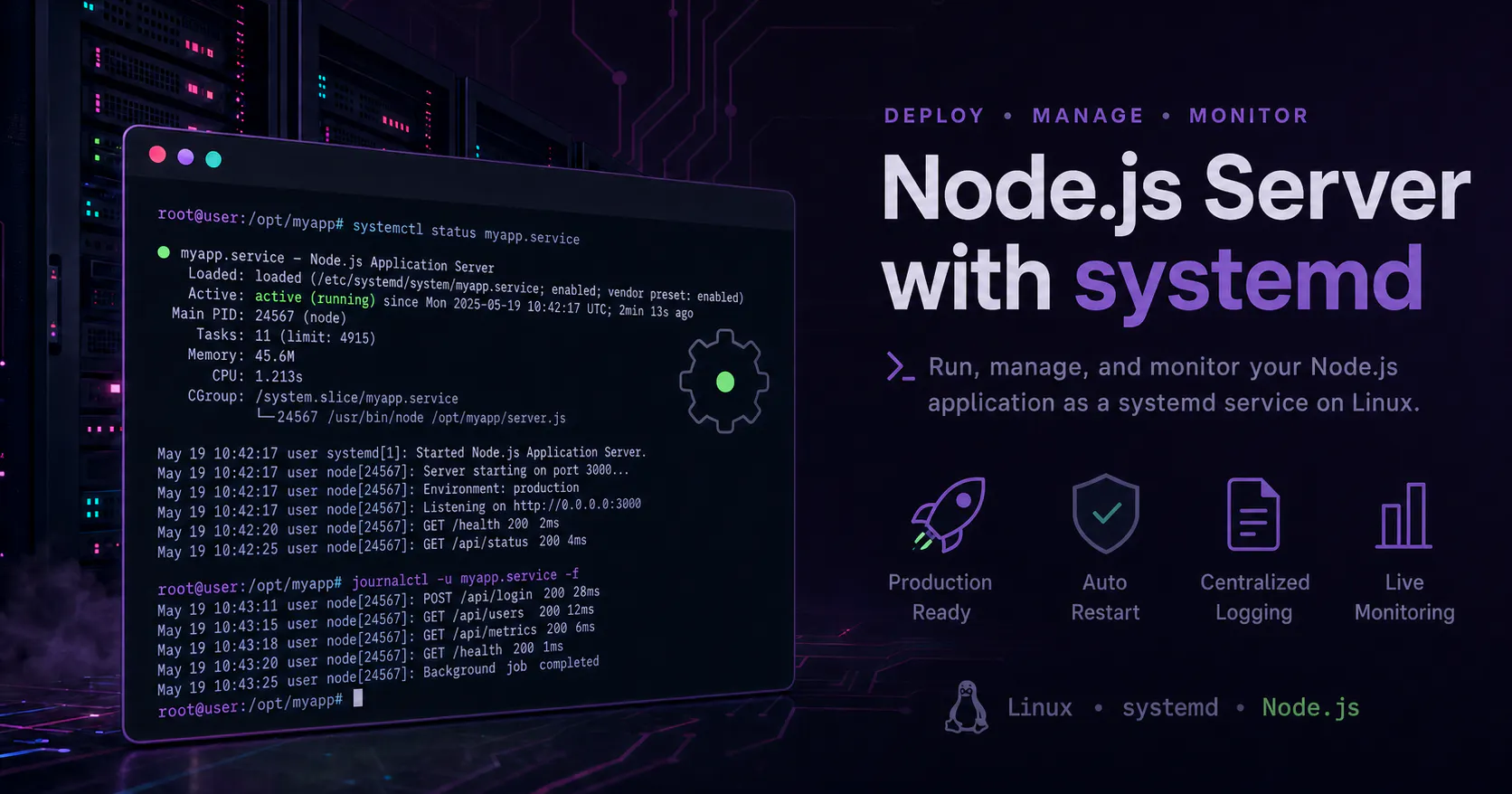
In a larger Linux-based automation stack, small infrastructure decisions matter because they determine whether supporting services behave like reliable system components or just long-running shell sessions. In this case, the work focused on taking a Node.js application and running it under systemd so it could start at boot, restart on failure, and fit cleanly into a service-oriented Linux environment.
When a Node.js server becomes part of an automation platform, predictable startup, process supervision, and centralized logging quickly become more important than simply proving that node server.js works in a terminal. systemd provides that operational layer, which is why it became the right fit for turning the app into a proper managed service on Linux.
Goals and environment
The objective was to take an existing Node.js application and run it as a long-lived service that starts automatically at boot, restarts if it crashes, and can be managed with standard Linux service commands. The baseline assumptions were a Linux host using systemd, a known Node.js binary path such as /usr/bin/node, and a Node.js application with a clear entry file such as server.js or dist/main.js.
Rather than relying on a shell session, a terminal multiplexer, or a manual start command, the service lifecycle was moved under systemd so the operating system could supervise the process directly. That shift is what makes the application behave like a first-class service instead of an ad hoc runtime process.
Choosing where the app lives
A practical early decision was where to place the application on disk. For software that is not managed by the distribution package manager, /opt is a common and sensible location because it keeps application code separate from both system packages and personal home-directory files.
A typical layout looks like this:
/opt/myapp
 ├── server.js
 ├── package.json
 ├── node_modules/
 └──...other app files...
This structure gives the service a stable working directory and makes ownership, updates, and operational management easier to reason about.
Identifying the app entrypoint
systemd does not understand Node.js applications at a framework level; it only executes the command it is given. That makes it important to identify the actual startup file for the application before writing the unit file.
The entrypoint can usually be determined in one of three ways:
- Check the file currently used to start the app manually, such as node server.js.
- Review package.json for a script like "start": "node server.js" or "start": "node dist/main.js".
- If the project has a build step, point ExecStart at the compiled output rather than the source files.
For the example used here, the assumed entrypoint is /opt/myapp/server.js.
Creating the systemd unit file
Once the app path and entry file are known, the next step is to create a service unit in /etc/systemd/system.
sudo nano /etc/systemd/system/myapp.service
That unit file is typically organized into [Unit], [Service], and [Install] sections.
Unit section
The [Unit] section defines the service description and startup ordering.
[Unit]
Description=My Node.js Application
After=network.target
Description labels the service in systemctl output, while After=network.target ensures the service starts only after basic networking is available, which is appropriate for a server process listening on a network port.
Service section
The [Service] section defines how the process is launched and how systemd should manage it.
[Service]
Type=simple
User=nodeapp
Group=nodeapp
WorkingDirectory=/opt/myapp
ExecStart=/usr/bin/node /opt/myapp/server.js
Restart=on-failure
RestartSec=5
Environment=NODE_ENV=production
Each directive has a specific role:
- Type=simple fits the normal Node.js pattern where the process stays in the foreground after launch.
- User and Group run the service as a dedicated non-root account instead of root, which is a safer default for application services.
- WorkingDirectory ensures relative paths inside the app resolve from the expected application directory.
- ExecStart gives systemd the exact command to run: the Node binary plus the application entry file.
- Restart=on-failure tells systemd to relaunch the service if the process exits with an error.
- RestartSec=5 adds a short delay between restart attempts so repeated failures do not immediately loop.
- Environment=NODE_ENV=production sets a production runtime variable directly in the service definition.
If more variables are needed, multiple Environment= lines can be added, or the service can point to an environment file.
Install section
The [Install] section determines how the service is tied into the normal boot process.
[Install]
WantedBy=multi-user.target
Using multi-user.target is the standard way to make a server-style service start automatically during normal multi-user system boot.
Creating a dedicated service user
Running the service as root is usually unnecessary, so a dedicated service account is the better approach. A system user and ownership for the app directory can be set up like this:
sudo useradd -r -s /bin/false nodeapp
sudo chown -R nodeapp:nodeapp /opt/myapp
The -r flag creates a system account, while -s /bin/false prevents interactive shell access for that user. Changing ownership of /opt/myapp ensures the service account has the permissions it needs to read the application files and manage any files the app is expected to write.
Reloading and enabling the service
After saving the unit file, systemd must reload its configuration so it notices the new service definition.
sudo systemctl daemon-reload
From there, the standard service commands are:
sudo systemctl start myapp.service
sudo systemctl stop myapp.service
sudo systemctl restart myapp.service
sudo systemctl enable myapp.service
start launches the service immediately, stop halts it, restart is useful after app updates, and enable configures it to start automatically at boot. The current state can be checked at any time with systemctl status myapp.service.
Viewing logs with journalctl
One of the operational benefits of using systemd is that service output is available through the system journal. That makes it straightforward to inspect startup problems, runtime errors, and application output without adding a separate logging process just to get basic visibility.
The most common log commands are:
journalctl -u myapp.service
journalctl -u myapp.service -f
The first shows accumulated logs for the service, and the second follows logs in real time. If the service fails to start because of a bad path, a missing file, or an application error, this is usually the first place to look.
Updating the application
As long as the Node binary path and entrypoint do not change, the unit file can remain stable while the application code evolves. A common update flow is to pull changes, refresh dependencies or build artifacts, and then restart the service.
cd /opt/myapp
git pull
npm install --production
npm run build
sudo systemctl restart myapp.service
That keeps deployment simple: update the code in place and let systemd relaunch the process cleanly against the new version.
Why this setup matters
Turning a Node.js app into a systemd service changes it from a manually started process into an operational component of the Linux system. It gains predictable startup behavior, controlled restarts, a standard management interface through systemctl, and centralized logs through journalctl.
For any Node.js server that plays a role in a broader Linux automation environment, that shift is what makes the service dependable enough to support the rest of the stack instead of becoming another process that has to be babysat manually.
Adjacent essays

SourceVault.ai
Debugging a Broken Python Virtual env: From “It Worked Yesterday” to Clean Recovery
Recently one of my Python projects went from “works fine” to “completely broken”.

Wiring Environment‑Aware Mobile Builds with Expo, EAS, and GitHub Actions
This post shows how I turned a stock Expo app into an environment‑aware mobile project by wiring APP_ENV through EAS build profiles, app.config.ts, a runtime apiClient, and GitHub Actions for linting and manual builds.