Debugging a Broken Python Virtual env: From “It Worked Yesterday” to Clean Recovery
Recently one of my Python projects went from “works fine” to “completely broken”.
bash: ./venv/bin/my-tool: cannot execute: required file not foundThe binary was there, executable, and on PATH . But the shell insisted it couldn’t execute it.
Under the hood, this turned out to be a classic virtual env failure: the interpreter inside the venv had become a dangling symlink. This post walks through the symptoms, how I diagnosed the problem, and the minimal steps to rebuild a healthy virtual env without tearing down the rest of the project.
The Symptom: “cannot execute: required file not found”
The first sign of trouble was that my CLI entrypoint, installed into ~/.local/bin , stopped working:
$ my-tool --version
bash: /home/user/.local/bin/my-tool: cannot execute: required file not found
This is different from the usual “command not found”:
- “command not found” means the shell couldn’t find the executable at all.
- “cannot execute: required file not found” means the file exists, but the interpreter in its shebang ( #!... ) can’t be run. On Linux that typically means the interpreter path doesn’t exist, or the binary is not compatible for the platform.
The CLI script itself was just a small shim that pointed into a virtual env:
$ ls -l ~/.local/bin/my-tool
~/.local/bin/my-tool -> /home/user/project/venv/bin/my-tool

$ head -n 1 /home/user/project/venv/bin/my-tool
#!/home/user/project/venv/bin/python3
So the next suspect was the virtual env’s Python binary.
Step 1: Check the venv’s Python Interpreter
The first thing to inspect in a broken venv is the bin/python and bin/python3 executables:
$ ls -l /home/user/project/venv/bin/python3
$ file /home/user/project/venv/bin/python3
In my case, the output was telling:
lrwxrwxrwx 1 user user 6 Apr 23 22:27 /home/user/project/venv/bin/python3 -> python
/home/user/project/venv/bin/python3: broken symbolic link to python
That reveals two important facts:
- python3 inside the venv is just a symlink to python in the same folder.
- The actual python file is missing, so the symlink is dangling.
When the kernel tries to run the shebang:
#!/home/user/project/venv/bin/python3it resolves python3 → python → “file does not exist” and we end up with:
cannot execute: required file not foundNo amount of reinstalling packages with pip will fix this. The interpreter itself is broken.
This failure mode is common when:
- The system Python you used to create the venv is removed or upgraded in a way that breaks links.
- You’ve copied or moved a venv between machines or paths.
- External tooling (package managers, custom installers, etc.) has rewritten or deleted parts of the venv.
Step 2: Stop Blaming PATH and Start Looking at Shebangs
It’s tempting to suspect PATH or shell config issues. A quick sanity check helps rule that out:
$ which my-tool
/home/user/.local/bin/my-tool

$ ls -l /home/user/.local/bin/my-tool
/home/user/.local/bin/my-tool -> /home/user/project/venv/bin/my-tool

$ head -n 1 /home/user/project/venv/bin/my-tool
#!/home/user/project/venv/bin/python3
Everything here looks correct:
- The shim script is on PATH.
- It’s pointing at the venv’s python3.
The problem is inside the venv, not the wrapper.
Key takeaway: when you see “cannot execute: required file not found” for a Python CLI, always look at:
- The first line of the script (shebang).
- The interpreter path it references.
- Whether that interpreter binary actually exists.
Step 3: Recreate the Virtual env Instead of Patching It
Once you confirm that venv/bin/python or venv/bin/python3 is a broken symlink, you can manually fix it by recreating the symlink to a system Python. In practice, that’s more brittle than just rebuilding the virtual env.
Here’s the approach that worked cleanly and is easy to repeat.
3.1 Remove the Broken venv
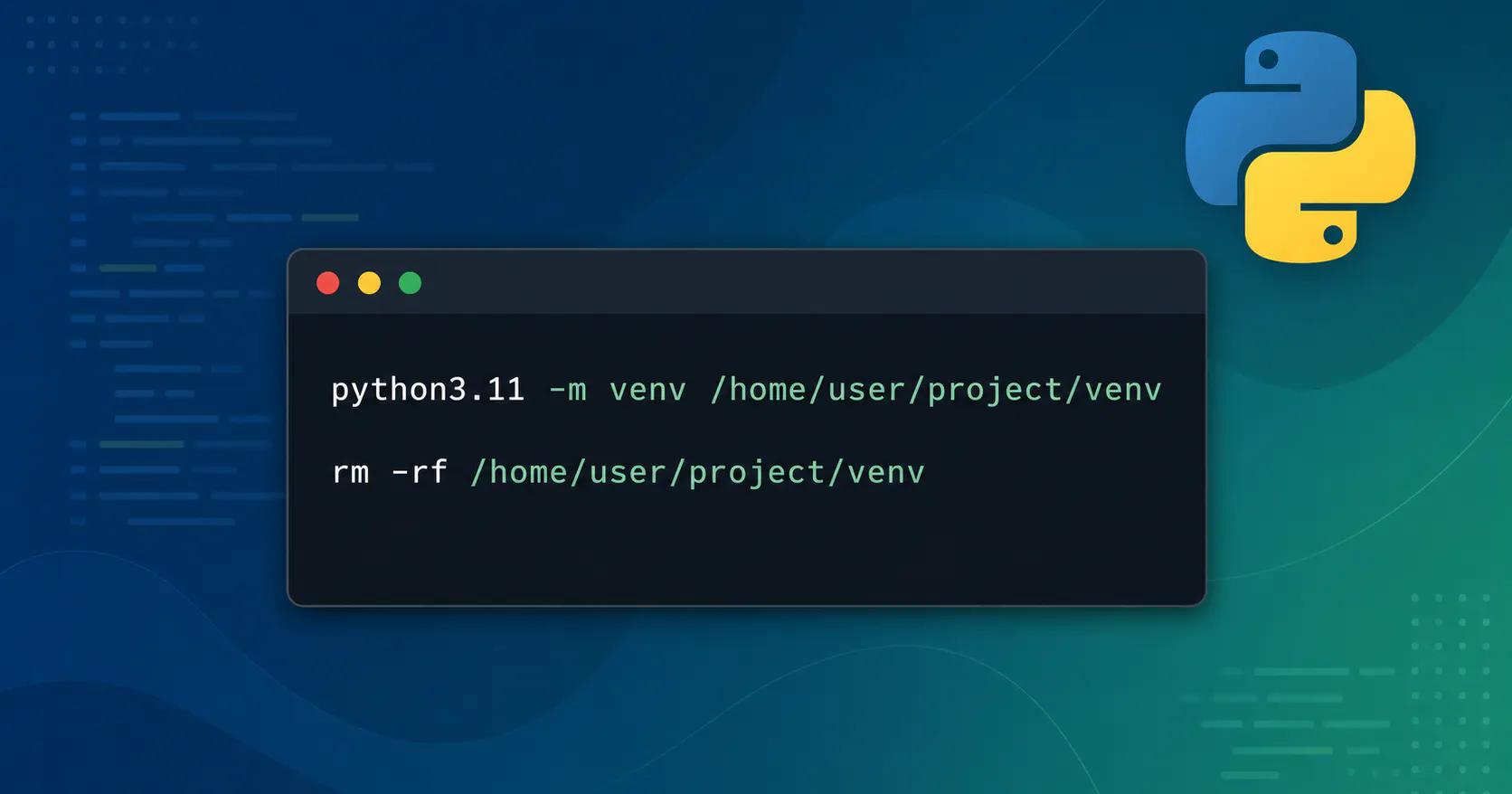
rm -rf /home/user/project/venvThis only deletes the Python environment. It does not touch your application source, configuration files, or data. If you keep secrets or config in the venv for some reason, move those elsewhere first.
3.2 Recreate the venv with a Known-Good Python
Use the system Python you actually want to target (3.11, 3.12, etc.):
python3.11 -m venv /home/user/project/venv
# or:
# python3.12 -m venv /home/user/project/venv
This gives you a fresh venv directory, complete with valid python and python3 binaries.
You can confirm:
ls -l /home/user/project/venv/bin/python3
file /home/user/project/venv/bin/python3
You should see either:
- A real binary: ELF 64-bit LSB executable , or
- A symlink chain that ultimately resolves to a real Python binary.
3.3 Activate and Reinstall Dependencies
Next, rehydrate the environment with your project’s dependencies:
source /home/user/project/venv/bin/activate
python --version

pip install --upgrade pip
pip install -r requirements.txt
# or your preferred dependency setup (pip-tools, uv, poetry, etc.)
If your CLI tool is installed as an editable package or via pip install . , do that now too:
pip install -e .Step 4: Re-Test the CLI and Global Shim
If you have a user-level shim in ~/.local/bin , make sure it still points to the right place:
ls -l ~/.local/bin/my-toolA typical layout looks like:
~/.local/bin/my-tool -> /home/user/project/venv/bin/my-toolNow test:
my-tool --version
my-tool some-command
If everything is wired correctly, the “cannot execute: required file not found” error disappears, and your tool runs again.
Step 5: How This Breakage Happens (and How to Avoid It)
This particular failure mode usually traces back to one of a few causes:
- Upgrading or removing the base interpreter used when the venv was created (e.g. a distro or Homebrew Python upgrade).
- Moving or copying virtual env directories between machines or filesystems in a way that breaks symlinks.
- Mixing multiple environment managers (system Python, uv , pyenv, Conda, etc.) and then uninstalling or cleaning up one of them without realizing some venvs depended on it.
Some habits that help avoid it:
- Treat virtual envs as disposable: it’s fine (and often preferable) to delete and recreate them when something looks off.
- Keep a reproducible dependency manifest ( requirements.txt , pyproject.toml , etc.) so recreation is cheap.
- Prefer a single environment manager per project and let that tool own the interpreter and venv creation.
A Simple Checklist for Broken venvs
When a Python CLI or script suddenly stops working with “cannot execute: required file not found”, here’s a quick checklist:
1. Check the script’s shebang:
head -n 1 path/to/script

2.Check the interpreter path from that shebang:
ls -l /path/from/shebang
file /path/from/shebang

3.If it’s a symlink to nowhere or the binary is missing, recreate the venv:
rm -rf /path/to/venv
python3.11 -m venv /path/to/venv
source /path/to/venv/bin/activate
pip install -r requirements.txt

4. Verify
python --version
which my-tool
my-tool --version
If you treat the virtual env as a rebuildable artifact rather than a fragile snowflake, these kinds of breakages become a minor speed bump instead of a multi-hour debugging session.
Adjacent essays

SourceVault.ai

Wiring Environment‑Aware Mobile Builds with Expo, EAS, and GitHub Actions
This post shows how I turned a stock Expo app into an environment‑aware mobile project by wiring APP_ENV through EAS build profiles, app.config.ts, a runtime apiClient, and GitHub Actions for linting and manual builds.
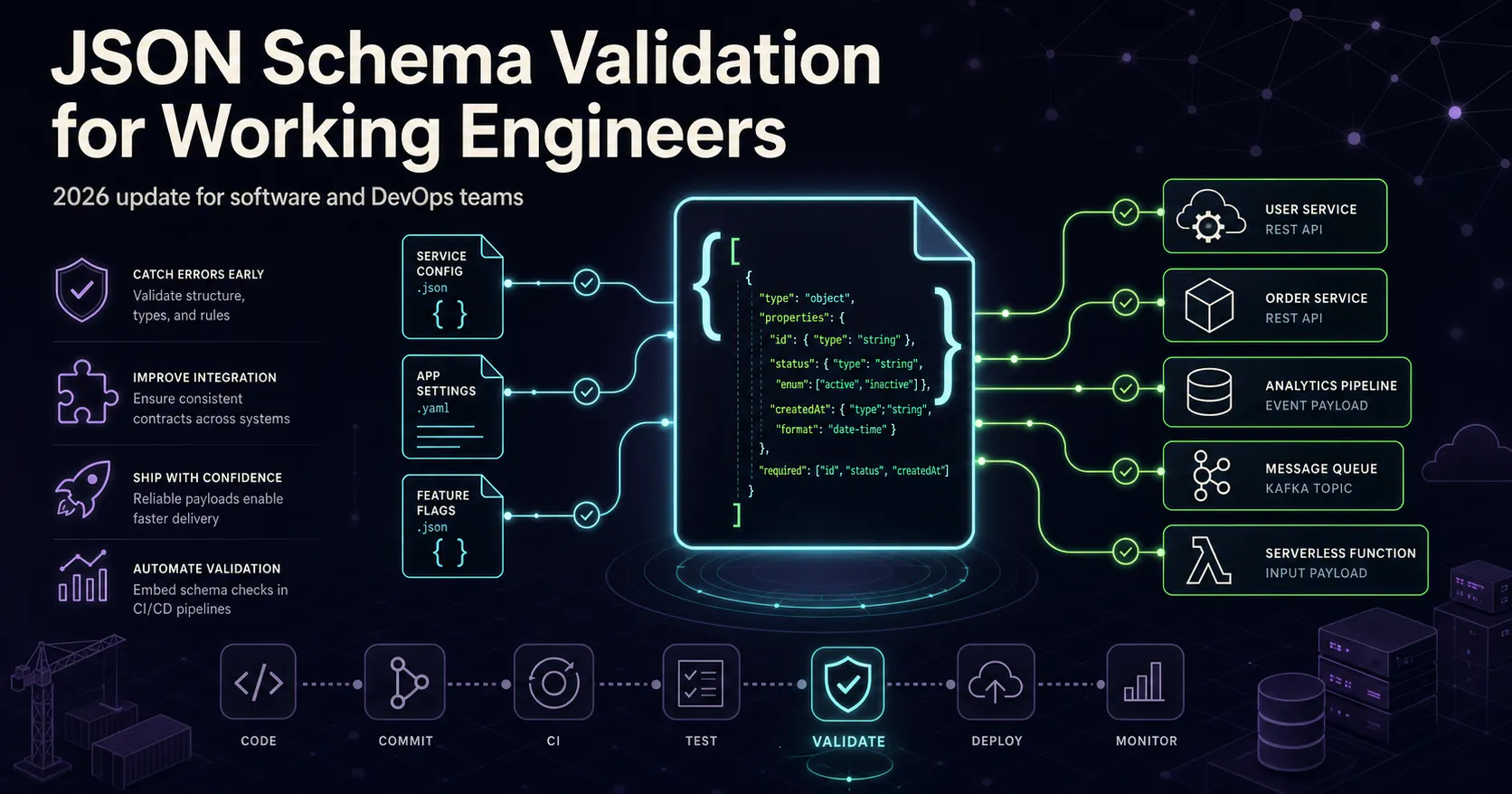
JSON Schema Validation for Working Engineers (2026 Update)
JSON Schema enables the confident and reliable use of the JSON data format.